Organization Slug and Token

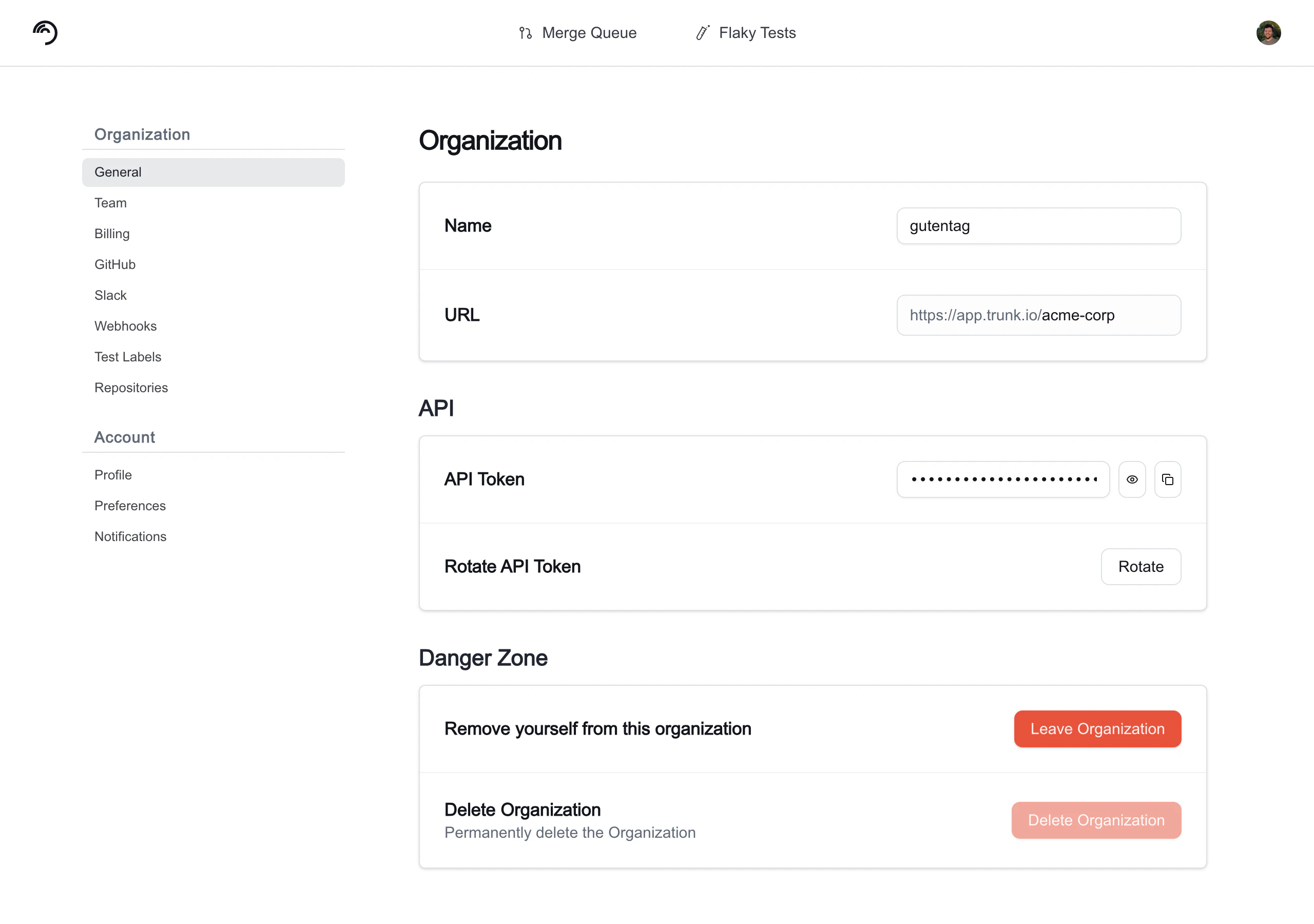
Integrating with Trunk through Webhooks, APIs, or CLI will require authentication using your organization’s slug and token. You can find your organization slug and token by navigating to SettingsOrganizationGeneral.

Managing Team Members

You can manage a team member’s role and remove team members by navigating to SettingsOrganizationTeamMembers and clicking on the name of a team member. You can change the role of a team member between member and admin, as well as remove the user from your organization.
Inviting Team Members

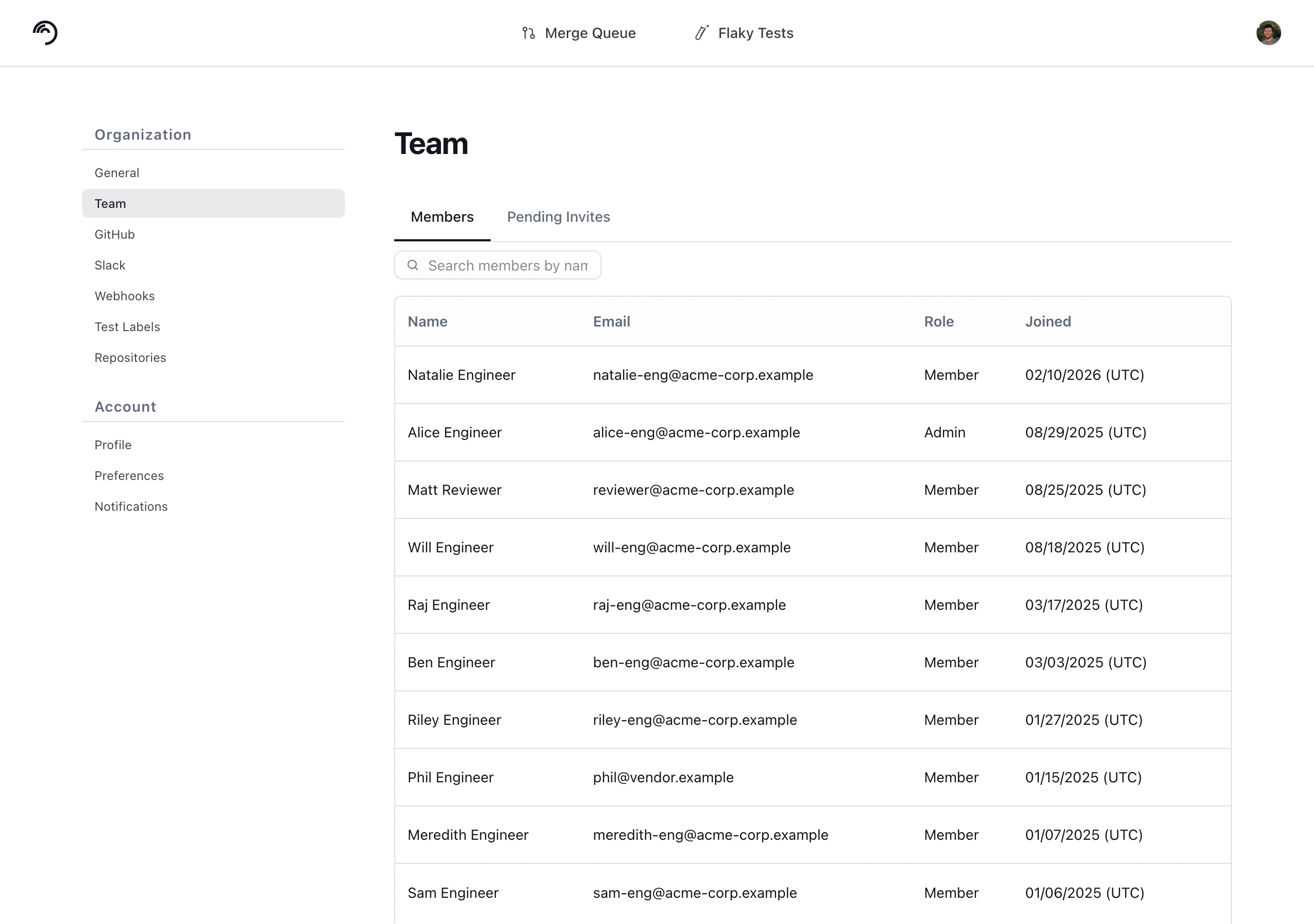
You can invite individual members manually by navigating to SettingsOrganizationTeamMembers and clicking the Invite Users button. An email will be sent to the invitee’s inbox. In the form, add comma separated email addresses and select a Role from the drop down. This role will be applied to all users in this invite batch. Available Roles are:
  • Member: Full access with limited permissions (default)
  • Admin: Full administrative access

Pending Invites

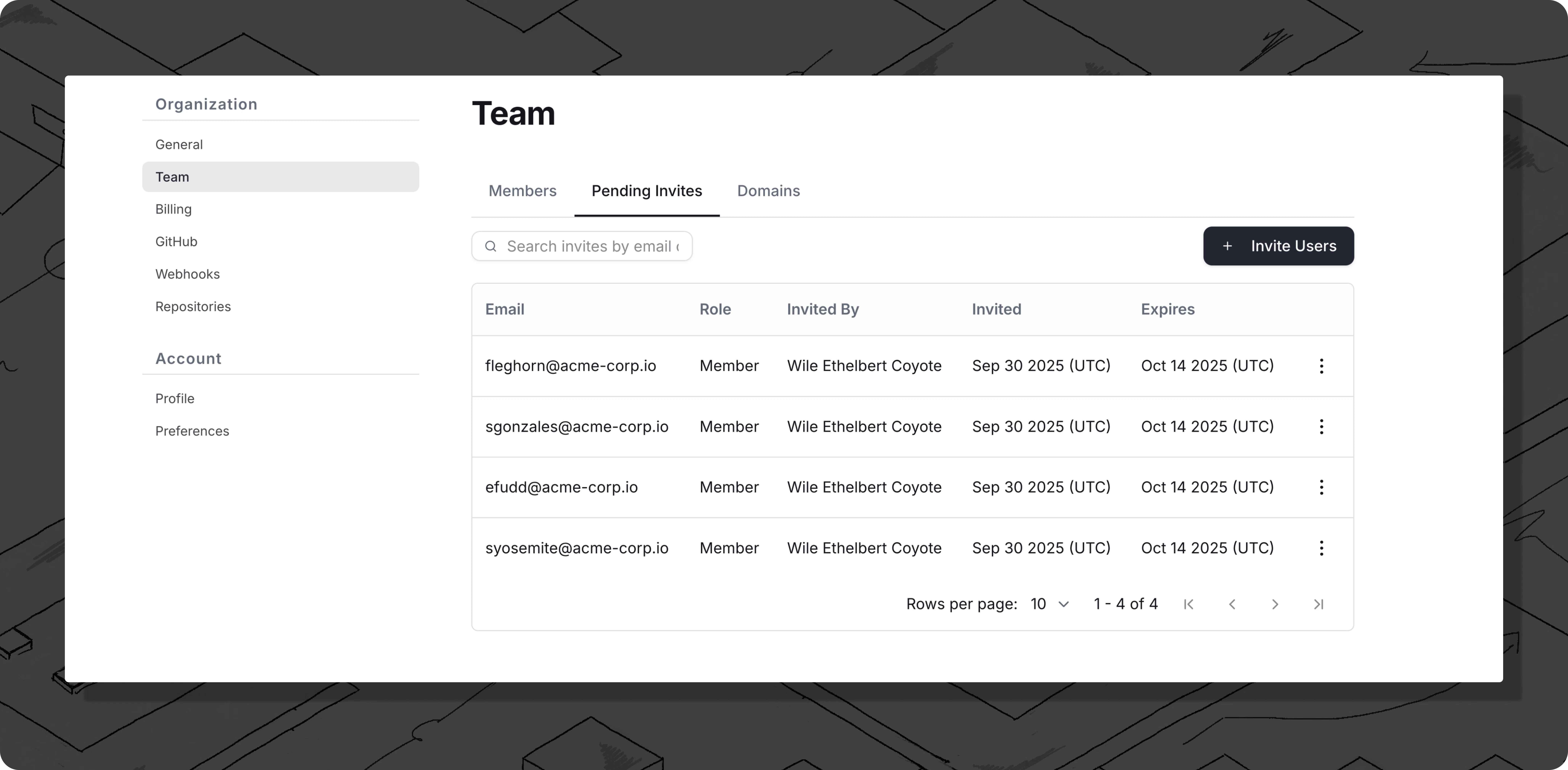
You can view and manage pending email invites by navigating to SettingsOrganizationTeamPending Invites. From this page you can copy the member invite link or revoke the invite using the three dots menu.
Verified domain auto-join and pending invites

If your organization uses verified-domain auto-join (any user with a matching email domain is automatically added), a pending invite’s role takes precedence over the default Member role. When a user signs in for the first time and a pending invite exists for their email address, they join with the invited role (for example, Admin) and the invite is marked accepted. If a user was already auto-joined as a Member before a higher-role invite was sent, re-clicking the invite link upgrades their membership to the invited role rather than producing an error.
Trunk also supports SSO login. If you wish to use SSO, please contact us at support@trunk.io.

Leaving an Organization

You can remove yourself from an organization at any time by navigating to SettingsOrganizationGeneral and clicking Leave Organization. A confirmation dialog will appear. Once you leave, you lose access to the organization’s settings, repositories, and test data. Another member can invite you back if needed. If you are an admin, the Leave Organization button appears in the Danger Zone section at the bottom of the General settings page alongside the Delete Organization option. If you are not an admin, the Leave Organization option appears as a standalone card outside the Danger Zone section.